Second Life Upload Instructions
Download Assets
Save the generated 3D mesh model and PBR textures to your computer:
Upload to Second Life
In your Second Life viewer, select Build > Upload > Mesh Model... from the top menu and choose the frame.dae file you downloaded.
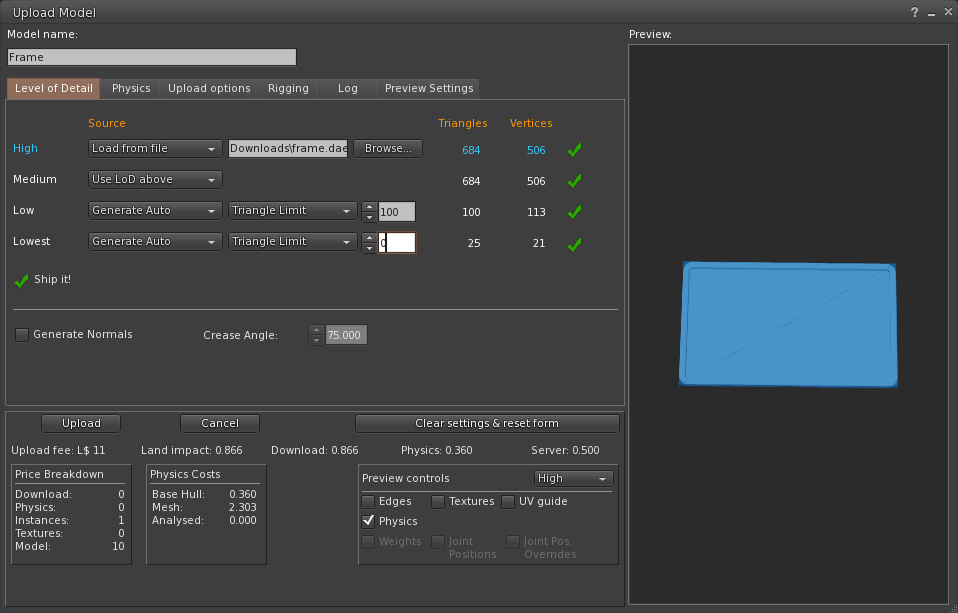
In the Mesh Uploader window, set the Level of Detail (LoD) levels.
See screenshot below.
We recommend to use the following settings to save Land Impact:
- High: “Load from file”
- Medium: “Use LoD above”
- Low: “Generate Auto”, and set the triangle limit to 100. You can check the result in the preview by clicking on the triangles/vergices numbers. If the output looks bad, increase the triangle limit.
- Lowest: “Generate Auto”, and set the triangle limit to 0.
In the Physics tab, select a physics model if you want to enable collisions with the mesh. We recommend using “Lowest” or “Cube.”
Click Calculate weights & fee.
Once calculated and you are happy with the required land impact, click Upload.
Create PBR Materials
You can either create your own materials using the provided textures, or apply existing ones.
To create materials from the textures, follow the instructions below.
To apply existing materials, simply drag and drop them onto the frame.
Upload all the downloaded texture files.
In your inventory, right-click on a folder and choose New Material.
Double click the new material to open the material editor.
Drag and drop the textures in the correct slots:
- Base Color:
basecolor.png(orbasecolor_animated.pngif animated) - Metallic-Roughness:
metallic-roughness.png - Emissive: leave empty
- Normal:
normal.png
Save the material.
Create a second material for the animation.
For Base Color, use the basecolor_animated.png texture.
Use the same textures as before for Normal and Metallic-Roughness.
Create the Frame
Rez the frame model inworld. Right-click and choose Edit.
Drop the materials you created onto the faces of your frame.
Make sure to drop the animation material only on the faces you selected to be animated.
Apply Animation Script
In the Content tab of the Edit window, click New Script. Open the script, clear all contents, paste the generated LSL script below, and click Save: